Edit multicam footage
Sync cameras by audio or timecode, switch angles live from a grid, let Auto Switch follow the speaker, and keep editing by text.
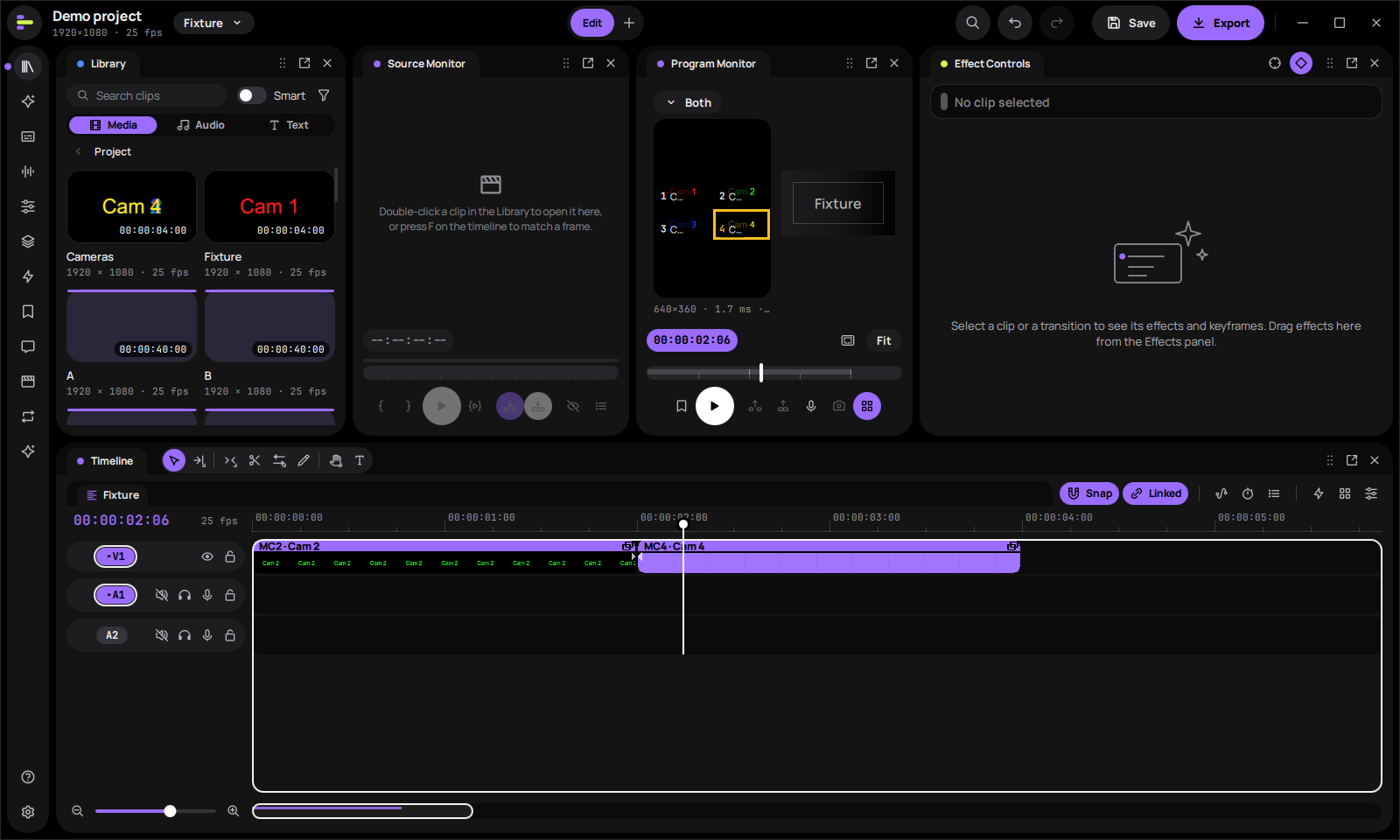
A multicam source sequence holds every camera of a shoot, synced, and a multicam clip in your edit shows one angle at a time. You switch angles while you play, as in Premiere.
Create a multicam source sequence#
- In the "Library", select the camera clips, and a separate audio recorder file if you have one.
- From the item menu choose "Create Multi-Camera Source Sequence…".
- Set "Synchronize by": "Audio", "Timecode", "In points", "Out points" or "Clip markers".
- Put the multicam source sequence in your edit. It becomes a multicam clip.
Switch angles#
- Open the Program Monitor's "Multi-Camera View" (Shift+0). The monitor shows every angle in a grid, with the active one outlined.
- Play the sequence and press 1–9 to cut to an angle as you go.
The switches you make while playing are recorded and applied when you stop, as one undo step.
Let Auto Switch follow the speaker#
"Auto Switch…" on a multicam clip cuts to whoever is talking, from the microphones' levels. It is how the podcast workflow (the sequence pill's "Podcast Workflow…") switches between speakers.
Edit by text through multicam clips#
Transcribe the sequence as usual. The words of a multicam clip come from its active audio angle and sit at the right times; nested sequences work the same way.
Deleting words inside a multicam clip cuts that clip in place: the pieces stay multicam clips, so you can still switch angles afterwards. Each deletion is one undo step. See Edit by text.
Grade multicam clips#
Auto colour, colour match and match scene work on multicam clips: they look at the angle the clip shows, and the grade goes on that clip. To grade a camera everywhere it is used, grade its angle in the multicam source sequence instead. See Grade colour.
Take it to Premiere or Resolve#
Nested and multicam sequences go along when you export the timeline with File > "Export Timeline…", and come in when you import one. See Move timelines between editors.
See also
- Edit a documentarySync multicam interviews by sound, edit them by text, grade, redact private details, and deliver a file and a timeline for Premiere or Resolve.
- Edit by textTranscribe a sequence, then cut the video by deleting, keeping or moving words in its transcript, and clear out filler words and long pauses.
- Grade colourCorrect and match shots in the Color workspace, apply looks and LUTs, and check your work on the scopes.