Get to know the Wabcut window
The File menu, the title bar, workspaces you arrange yourself, the left rail, Settings and the timeline's tools.
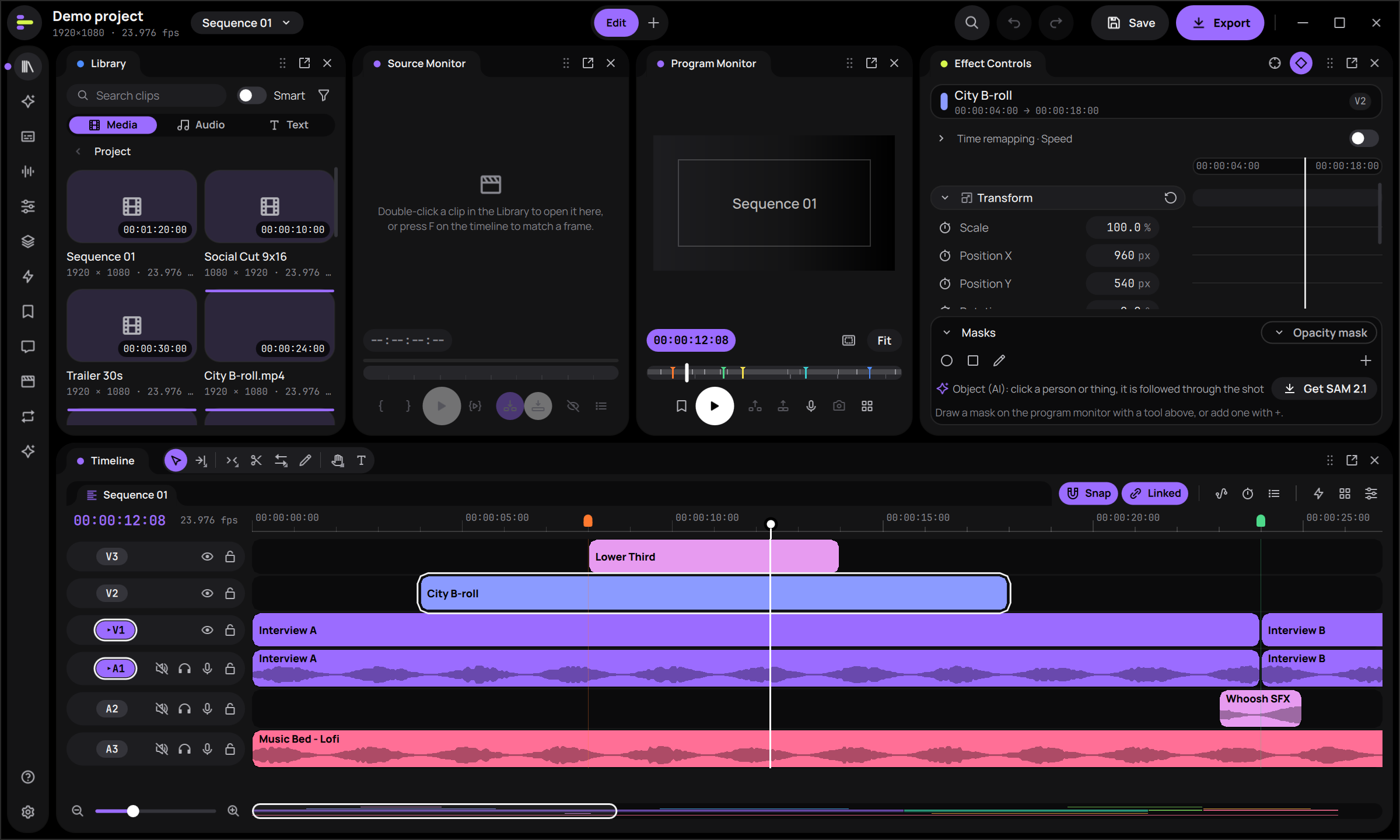
Wabcut's panels sit on a black stage as rounded islands, each with a tab and a colour dot. There is no menu bar: everything is in the File menu, the title bar, the left rail and the panels themselves.
The File menu#
Open it with Alt+F or by clicking the logo, top left. It has:
- "Home", "New Project" (Ctrl+Alt+N), "Open Project…" (Ctrl+O);
- "Save" (Ctrl+S), "Save As…" (Ctrl+Shift+S);
- "Import…" (Ctrl+I), for media and timelines;
- "Relink Offline Media…", "Recover…", "Export Timeline…", "Collect Files…";
- "Settings…" (Ctrl+,), "Keyboard Shortcuts…" (Ctrl+Alt+K);
- "Window": every panel. A checked one is open in this workspace; choosing a closed one opens it. "Reset Panel Layout" is here too;
- "Exit" (Ctrl+Q).
The title bar#
- The sequence pill switches sequences. Its list also has "New Sequence…" (Ctrl+N), "Reframe…", "Rough Cut from Script…", "Narration from Script…" and "Podcast Workflow…".
- The command palette button (Ctrl+Shift+P). See Use the command palette and the Assistant.
- Undo (Ctrl+Z) and Redo (Ctrl+Shift+Z). Their tooltip names the step.
- "Save" and "Export" (Ctrl+M). A dot on Save means there are unsaved changes, and its tooltip says when the project was last autosaved. Settings > Interface can show the GPU and autosave status in the title bar again.
Workspaces#
The tabs in the middle of the title bar are your workspaces. None is built in: the first start makes one from the Edit preset, and "+" after the tabs makes a new one from a preset or as a copy of the current one.
| Preset | What it lays out | Its key opens (or makes) the first one |
|---|---|---|
| Edit | Library, Source and Program Monitors, Effect Controls, the timeline | Alt+Shift+6 |
| Color | Scopes, Program Monitor, Color, the timeline | Alt+Shift+5 |
| Audio | Audio Tools, Program Monitor, Audio Track Mixer, the timeline with volume lines | Alt+Shift+3 |
| Captions | Transcript, Program Monitor, Caption Style, the timeline | Alt+Shift+4 |
| Export | Program Monitor, the export settings, the timeline | Ctrl+M, the "Export" button |
Right-click a tab for "Rename", "Duplicate", "Move left" / "Move right", "Reset layout" (back to its preset) and "Delete workspace" (the last one stays). Double-click a tab to rename it, and drag a tab to move it.
Arrange the panels#
Each workspace keeps its own layout, and you change it right on the workbench.
-
Panels sit in groups. A group with several panels shows them as tabs: click a tab to show its panel, and click its × (or middle-click the tab) to close it. The × at the end of a panel's header closes the panel too.
-
Move a panel by dragging its tab, or a group's grip (the dotted handle at the end of the header):
- onto another group's tabs or middle, to add it there as a tab;
- near a group's edge, to dock beside it (that group gives it half its room);
- to the edge of the window, to run along that whole side;
- outside the panels, or with Ctrl held, to give it a window of its own. The pop-out button does the same, and closing the window docks the panel back.
Where the panel will land lights up while you drag.
-
Bring closed panels back from the left rail, File > "Window", or their focus keys: Shift+1 Library, Shift+2 Source Monitor, Shift+3 Timeline, Shift+4 Program Monitor, Shift+7 Effects. They open next to panels like them.
-
Resize by dragging the gutter between two groups; a double-click shares the room evenly. A guide line follows the pointer and the panels resize when you let go (Settings > Interface > "Resize panels live" makes them follow the pointer instead).
-
File > "Reset Panel Layout" puts the workspace back the way its preset lays it out.
The left rail#
The rail along the left opens panels: "Library" (Shift+1), "Effects" (Shift+7), "Transcript", "Audio Tools", "Essential Sound", "Callouts" (titles, templates and stickers), "Highlights", "Markers", "Review", "Shorts", "Takes" and "Generate".
Right-click the rail to hide an entry or move it up or down, or use Settings > Interface > "Left rail", which also resets it. Help and Settings sit at the bottom.
Settings#
Settings (the gear at the bottom of the rail, or Ctrl+,) is one window with these pages:
| Page | What it holds |
|---|---|
| "General" | The workspace Wabcut opens in, the native window frame, the save state and how often to autosave. |
| "Appearance" | Themes (Ultraviolet, Daylight, Graphite, Midnight, Paper and your own), dark or light, the accent, high contrast, reduce motion, the interface size, and "Custom colours" for every colour of the interface and the clip labels. "Save theme" keeps your colours under a name; "Import…" and "Export…" read and write theme files you can share. |
| "Interface" | The GPU and save status in the title bar, the left rail, and "Resize panels live". |
| "Timeline & editing" | Linked selection, the snap line, trim offsets, thumbnails, waveforms and more. |
| "Playback & performance" | The GPU and video decoding in use, and "Media & cache…". |
| "Audio" | The microphone and voice-over, and the audio plug-ins. |
| "AI" | Providers and keys, models, privacy, usage and the local assistant. See Use AI. |
| "Keyboard" | The shortcut editor and the Keyboard Trainer. |
| "Plugins & extensions" | Audio plug-ins and JavaScript extensions. |
The Program Monitor#
The Program Monitor works like Premiere's: a click selects what is under the pointer, a double-click edits a text or title in place, and each further double-click picks the object behind it.
The time bar under the picture shows the whole sequence, with its clips, edit points, markers and the In/Out range. Click or drag it to move the playhead. The wheel steps frames, Ctrl+wheel zooms and Shift+wheel scrolls.
The timeline#
The Tracks panel keeps its tools in the header, in Premiere's groups. A small corner mark on a button means it holds more tools: right-click it, or press and hold, to pick another (Ripple holds Rolling, Rate Stretch and Remix; Slip holds Slide; Hand holds Zoom).
- "Snap" (S) and "Linked" are labelled switches at the right end of the sequence tabs.
- The pointer shows what a press will do: trim brackets on clip edges (yellow for a ripple trim), the razor, the pen, and so on.
- Drops. Clips you drop from the Library, the Source Monitor or File Explorer snap to the clip in front, the playhead and markers while Snap is on. A drop overwrites only where it lands, as in Premiere (hold Ctrl to insert instead): its picture goes on the track under the pointer and its sound on the matching audio track, or the next free one, so clips on the other tracks stay whole.
- Files dropped from File Explorer are imported first, and several files go one after another. Holding a drag over the ruler adds a video track (below the last track, an audio track), and sequences from the Library drop in as nested clips.
See also
- Use the command palette and the AssistantRun any edit by name from the palette, or describe it in your own words and let the Assistant propose it.
- Keyboard shortcutsUse Premiere Pro's default shortcuts in Wabcut, change any key or import your own Premiere key set, and practise with the Keyboard Trainer.
- Set up Wabcut the first timeThe Home screen, the five-page welcome and a short performance check get you from a fresh install to editing.