Mask, track and redact
Limit effects and the grade to part of the picture, make masks follow the action, and hide faces, plates and words wherever a recording is used.
A mask decides where something happens. It can cut a clip out, or limit an effect or the colour grade to the inside of a shape. The tracker makes a mask follow the picture, and an AI object mask follows a person or an object through the shot.
A redaction works differently. It belongs to the source recording, not to one clip. A face you blur once stays blurred in every cut made from that footage, and the words in a redacted stretch can be muted or bleeped.
Masks, tracking results and redactions are ordinary project data and keyframes. The Program Monitor and the export render them the same way.
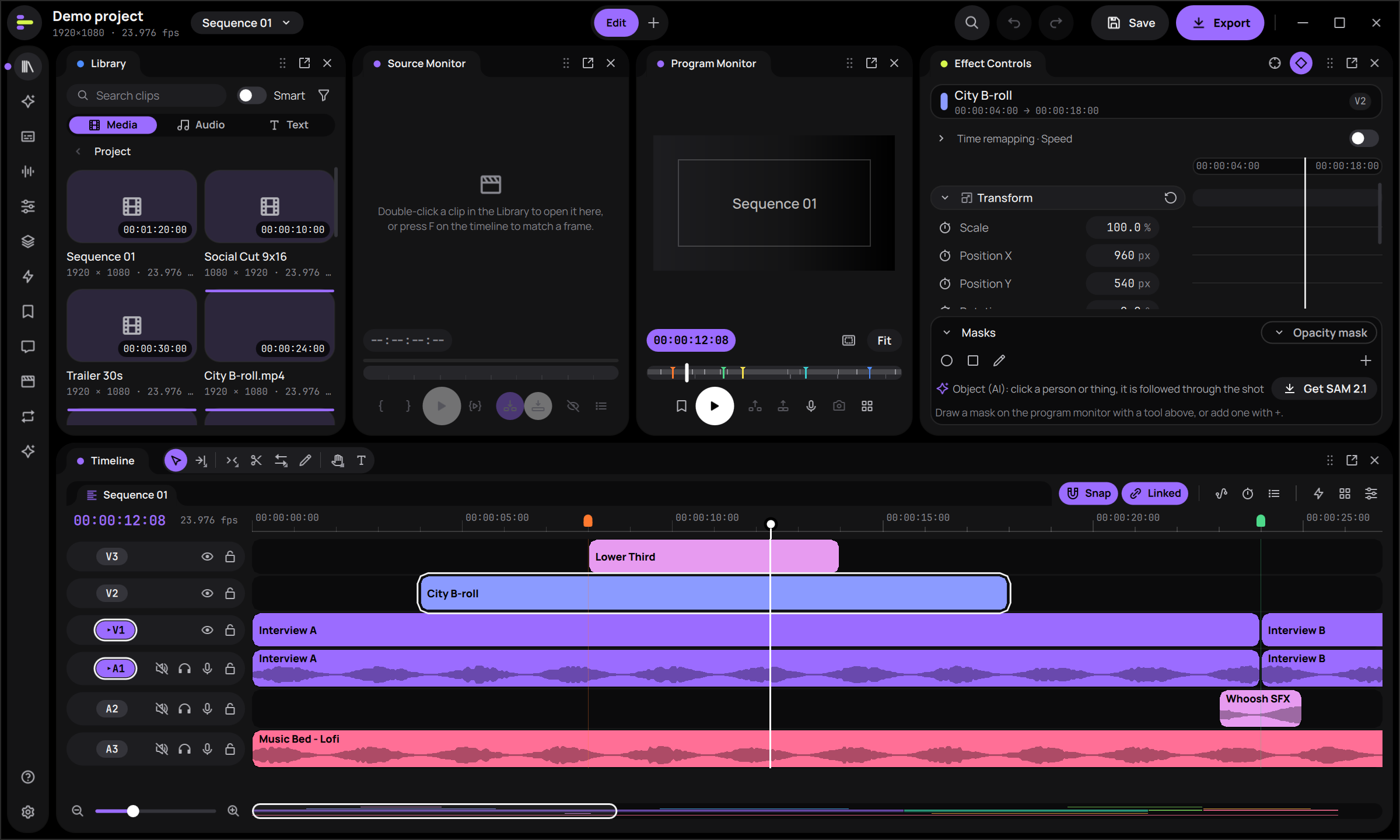
Draw a mask#
- Select the clip and open "Effect Controls". The "Masks" section sits under the clip's effects.
- In the target menu, choose what the masks shape:
- "Opacity mask (cut out)" cuts the clip out to the mask.
- One of the clip's video effects, shown with "(local)", changes only inside the mask. Any video effect works, for example Basic Correction, Vignette, Gaussian Blur, Sharpen, Crop, Drop Shadow or the colour grade. Add the effect first.
- Choose a tool, then draw on the Program Monitor:
- Ellipse or Rectangle: drag a box.
- Pen: click for corners and drag for curves. Click the first point (or press Enter) to close the shape; Esc cancels.
- "+" adds an ellipse in the middle of the picture.
An effect can hold up to 16 masks. The handles stay on the picture when the clip is moved, scaled or rotated. For a pixelated patch, mask the Mosaic effect (in Stylize).
Shape and combine masks#
Click an outline in the Program Monitor to select its mask. The selected mask has a solid outline (the others are dashed) and a dashed band for its feather. Drag the centre to move it, a corner to size it and the round handle above it to rotate it. On a Pen mask, drag the points and their tangent ends. The square handle sets the expansion and the dot on the right sets the feather.
Each mask has a row with its shape and name, SUB or INT for its mode, and buttons to invert it, turn it off or delete it. For the selected mask:
| Setting | What it does |
|---|---|
| Mode: "Add", "Subtract" or "Intersect" | How the mask combines with the ones before it. If the first mask adds, the masks start from nothing; if it subtracts or intersects, they start from the whole frame. |
| "Feather" | Softens the edge. |
| "Expansion" | Grows the mask, or shrinks it with a negative value. |
| "Opacity" | How much the mask covers. |
| Invert | Covers the outside instead. |
When a setting is animated, changing it sets a keyframe at the playhead.
Track a mask#
- Put the playhead on a frame where the mask sits on its subject.
- Under "Track", choose a direction: back to the clip's start, one frame back, one frame forward, or on to the clip's end.
- Watch the progress bar and the confidence strip: one bar per frame, green when the tracker is sure, amber when it is unsure, red when it lost the subject. Stop ends the run and changes nothing.
When the run finishes, Wabcut says what happened ("Tracked 120 frame(s)" or "Lost after 37 frame(s)"). The movement is written as keyframes on the mask, replacing any keys in that stretch, in one undo step. A tracked mask shows a crosshair in its row.
- The tracker reads the clip's own source frames, from its proxy when the original is offline. On a reversed clip, "forward" follows the timeline.
- Tracking stops at the first frame where it loses the subject, and it won't find it again by itself. Move the mask back onto the subject and track again from there.
- A clip with Time Remapping can't be tracked. Turn Time Remapping off first.
- To make another clip follow a tracked region, or to stabilise a shot on it, use the "Track Motion" command in the command palette.
Select an object with AI#
The "Object (AI)" tool (the sparkles) in the "Masks" section makes a mask that follows a person or a thing through the shot. It runs on your computer and no picture leaves it.
- The first time, choose "Get SAM 2.1", read the model's licence, then choose "Download". The model is 190 MB and downloads once.
- Pick the mask's target as for any mask: an effect, the grade, or "Opacity mask (cut out)" to remove the background.
- Click the person or object in the Program Monitor, or drag a box around it. More clicks refine it. Alt-click (or turn on the minus button) to take an area away. "New object" starts another one.
- Under "Track", choose backward to the shot's start, both ways, or forward to the shot's end. Tracking stops at the shot's cuts unless "Across shot cuts" is on.
- Use "Preview" to check the result: "Colour" tints the object, "Alpha" shows the mask in grey.
"Feather", "Expansion" (a negative value chokes the edge), invert, opacity and mode work as for any mask. To blur the background behind a speaker, put an inverted object mask on a Gaussian Blur. An object mask has no handles. Its outline is the object's bounding box, which stands in on frames where there is no mask, for example on another computer.
Redact a face, a plate or a screen#
- Open the clip in the Source Monitor and mark In and Out around the stretch to hide. Without marks, the whole recording is covered.
- Click the Redactions button (the list icon, "Redactions of this source"). Under "New", pick a look: "Blur", "Mosaic" or "Solid" (an opaque colour). Then pick a sound: "Sound" keeps the sound, "Mute" silences it and "Bleep" replaces it with a 1 kHz tone.
- To follow something that moves, turn on "Track an object (AI)". It uses SAM 2.1, so choose "Get SAM 2.1" first if you haven't downloaded it.
- Click the Redact button (the eye-off icon) and drag over the picture. With "Track an object (AI)" on, drag a box around the face, plate or screen, and Wabcut follows it from In to Out.
In the Source Monitor, the mini timeline shows redacted stretches in red, and the covered regions at the current frame are outlined.
A redaction always covers its whole area at full strength, and its soft edge lies outside that area. It is applied before any of the clip's effects, so sharpening or a grade can't bring the original back. Sound changes only inside the redacted stretch, with short fades just outside it, so you hear none of the original and nothing clicks.
Where a redaction applies#
A redaction marks the source footage, so it follows that footage everywhere:
- In every sequence that uses the source, trimmed, sped up, slowed down, reversed, frozen or reused, with no need to mark it again. A frame stays covered for as long as it is on screen, at any sequence frame rate.
- Inside nested and multicam clips, at any depth.
- In subclips and separated stems, which share their master's source. A redaction drawn on either covers both.
- In pictures outside the timeline: the export, burned-in captions, the scopes, review thumbnails, Library thumbnails, timeline filmstrips and smart-search results.
- In another project, when you copy and paste the clips.
- In words. A bleeped or muted word reads as bleeped in transcripts. Burned-in captions and SRT or VTT files show
[bleep]in its place; without word timings, the whole caption becomes[bleep]. Translations never get the original words. - In the cloud. Redacted regions and bleeped words are never uploaded in clear.
When Wabcut can't draw a picture with its redactions, for example a nested clip or a review thumbnail, it leaves the picture out instead of showing it unredacted. On frames where the AI lost the object, the redaction grows from the nearest frame it has. With no AI mask at all (for example on another computer), it covers the object's box made a quarter larger.
Manage redactions#
The Redactions list shows every redaction of the source with its time range, look and sound. From there you can change the look and sound, turn a redaction on or off, or delete it everywhere.
To keep one clip unredacted, select the clip in the timeline and choose "Don't redact on the clip selected in the timeline" on that redaction's row. This also covers the clip's linked partners. Excepting a nested clip excepts everything inside it. If you cut an excepted clip with the razor, the new piece is redacted again until you except it too.
Limitations#
- No automatic face detection. You draw each region or mark each object yourself.
- Use a redaction for privacy, not a masked blur. A tracked effect mask can run up to a frame ahead of its subject when frame rates differ. Redactions are pinned to the frame on screen.
- Unredacted copies stay on this computer. The thumbnail cache, the analysis cache and the smart-search index keep unredacted pictures of a source. Everything the app shows is redacted.
- AI masks live on this computer. On another computer, or after the analysis cache is cleared, the bounding box stands in for an object mask.
- Time Remapping and frame holds. Object masks are refused on clips with Time Remapping or a frame hold, and mask tracking is refused while Time Remapping is on.
- Music remix. Wabcut won't render a music remix over a stretch whose sound is muted or bleeped.
- The Assistant can't redact. Make redactions yourself in the Source Monitor.
See also
- Grade colourCorrect and match shots in the Color workspace, apply looks and LUTs, and check your work on the scopes.
- Edit a documentarySync multicam interviews by sound, edit them by text, grade, redact private details, and deliver a file and a timeline for Premiere or Resolve.
- Make captionsGenerate captions from the transcript, style and animate them, translate them, and export them as files or burn them into the picture.
- Use AI on your computer or with your own keyEvery AI feature is optional. Local models send nothing anywhere; cloud models use your own key, ask first and show the price.